/ get-clients
One Link for Everything You Offer: Sharing Your Gig Profile
Your Gig profile already says what you do, what it costs, and what people thought of it. The share button turns all of that into one link that opens as a web page, so the person you send it to doesn't need the app to read it.

The short answer: open your Profile tab in Gig and tap the share icon next to Edit. Pick Whole profile, or one listing under Or just one service, and send the link the way you'd send anything else. It opens a web page with your photo, rating, bio, services and prices, your newest reviews, and the contact buttons you've chosen. The person on the other end doesn't need Gig installed to see any of it. Sharing is free, and Gig still takes 0% of what you charge.
Where the share button is
The share icon sits at the top of your Profile tab, beside the Edit button. If you have at least one live listing, a sheet titled Share opens with Whole profile at the top and your listings under it. Listings you've switched off, or that are still waiting on review, aren't in that list, because they wouldn't show on the page either. With no live listings, the button goes straight to your phone's share menu.
The message comes pre-written, “I'm on Gig” or “I offer [your service] on Gig,” followed by the link. Change the words if you like.
Other people's profiles have the same icon, so when a neighbor asks who fixed your fence, you can send the pro's profile. Do it while signed in: a link made while browsing without an account opens a page about the app, not the profile.
What the other person sees
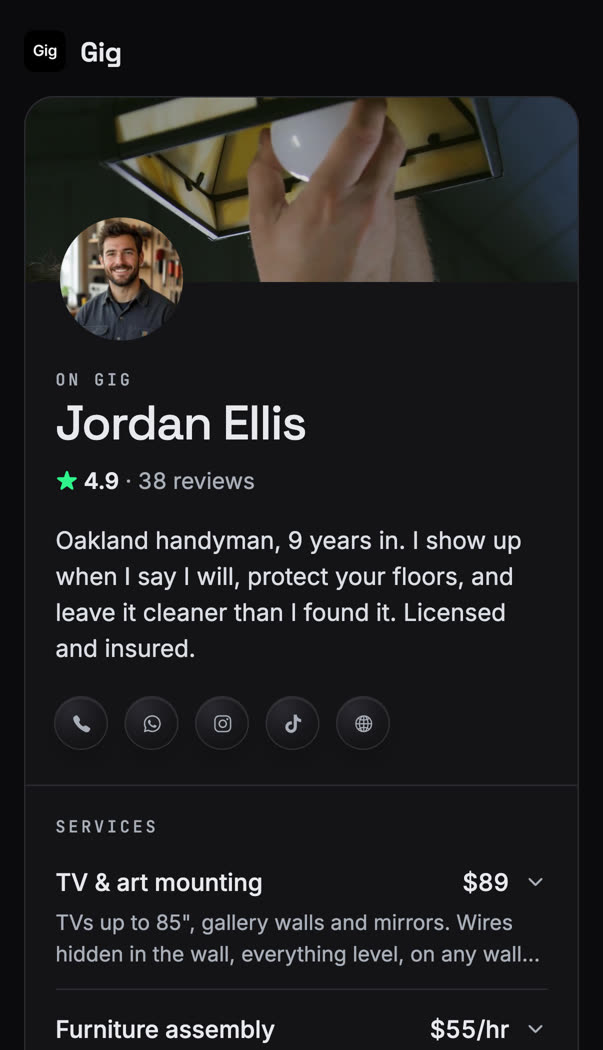
The link opens at mummysboy.com, where Gig's website lives. From top to bottom:
- Your background photo and profile photo, or a colored circle with your initials if you haven't added a photo.
- Your name and rating, with the review count. The stars appear once you have reviews.
- Your bio.
- Contact buttons for whatever you've added: a phone button that opens a Call or Text menu, WhatsApp, Instagram, TikTok, Facebook, LinkedIn, and your website. Anything you left blank doesn't show.
- Your services with prices, up to six. Tap one to read its full description. Online listings carry an “Online” tag. If you have more, the page says how many more are in the app.
- Your five newest reviews, each signed with the reviewer's first name and last initial.
- A way in: App Store and Google Play buttons to message you on Gig, an “Open in the app” link for people who already have it, and, on a computer, a QR code that opens the same page on their phone.
One service, or the whole profile
Share a single listing and the page reorders itself around it. That service goes to the top with its price and full description, your bio follows under “About,” and everything else moves down to “More services.” If the person has the app and opens the link there, the same listing is pinned first with a “Shared with you” label.
The whole profile suits a bio or a group post, where people don't know yet what they need. The single service suits someone who already asked. They want their gutters cleaned: send the gutters, not the full menu.
What the preview looks like in a text
Paste the link into Messages, WhatsApp, or a Facebook group and most apps draw a preview card from the page. Gig fills it with your profile photo, a title made of your name and your newest service, and a line from your bio followed by your rating, review count and a couple of your services. For a shared service, the title becomes that service and its price, and the line is the start of its description. The photo stays yours either way, and each app decides how much of the rest it shows. So the first sentence of your bio has a job: say what you do, and where.
Your phone number, and the switch that hides it
A contact phone is optional. Add it in the profile editor, then choose How people can reach you: Phone, WhatsApp, or Both. Phone becomes the Call or Text menu on the page. WhatsApp becomes its own button.
Inside the app, the number shows only to people signed in to Gig. The share page is public, and the number shows there by default, because someone without the app still needs a way to reach you. To keep it off the page, turn off Show on my shared profile link. Signed-in people still see it in the app.
Your payment handles — Venmo, Cash App, Zelle, PayPal — never appear on the shared page. Only signed-in Gig users see them, inside the app.
Where the link is worth putting
- Your Instagram or TikTok bio. Every service and price behind one link, with nothing to update by hand.
- A text to a past client. A link is easier to pass along than a description.
- A neighborhood group post. Say what you do in a sentence, then the link. Read the group's rules on self-promotion first.
- Your email signature, under your name.
- Paper. If you order business cards from the Gig app, the QR code on them opens this same page.
Turning that first tap into a booking is covered in how to get your first local clients, and the price question in how to price your services.
What the link doesn't do
It isn't a search listing. The page asks search engines not to index it, so it won't turn up on Google. It's for links you send and post yourself. People find you by searching inside Gig.
It's in English. The app runs in 18 languages. The shared page is English only.
Gig chat needs the app. A visitor can call, text or WhatsApp you from the page if your number is on it, or tap through to your social links. Messaging you on Gig means installing it.
It only works as Gig made it. Every link carries a key for that one profile, so changing the number in the address opens a page about the app, not someone else's profile. Links shared before mid-October 2026 don't carry the key and now open that same page. If you posted yours earlier, share it again and swap it in.
It follows your account. A listing you switch off disappears from the page. If an account is paused or taken down, its link says the profile isn't available.
It doesn't take payment. Customers pay you directly, however you agree, and Gig takes 0%. The safety side of that is in is Gig safe.
Your profile was already the pitch. The link lets you hand it to someone who hasn't downloaded anything.
Frequently asked
Does the person I send my Gig link to need the app?
No. The link opens a web page with your photo, rating, bio, services with prices, your newest reviews and the contact buttons you've added. To message you in Gig's chat they need the free app, and the page has App Store and Google Play buttons for that, plus an “Open in the app” link for people who already have it.
Can I share just one service instead of my whole profile?
Yes. Tap the share icon on your Profile tab and pick the listing under “Or just one service.” That service shows first on the page with its price and full description, the rest of your services follow, and the link preview describes the service instead of your whole profile.
Is my phone number shown on my shared profile?
Only if you've added a contact phone and left “Show on my shared profile link” on. It's on by default. Turn it off and the number stays visible only to people signed in to Gig, inside the app. Your Venmo, Cash App, Zelle and PayPal handles never appear on the shared page.
Will my shared Gig profile show up on Google?
No. The page asks search engines not to index it. It's built for links you send and post yourself. People find you by searching inside the Gig app.
Get the profile right first
The link carries whatever your profile says. If you're still deciding what to list, start with what service to offer. If your work happens over video, an online listing can be found from anywhere.